> For the complete documentation index, see [llms.txt](https://docs.openbrim.org/llms.txt). Markdown versions of documentation pages are available by appending `.md` to page URLs; this page is available as [Markdown](https://docs.openbrim.org/templates/steel-i-girder-bridge-workflow/substructure-sig/pier-sig/cheek-wall-sig.md).
# Cheek Wall \[SIG]
## General
**Pier Cap:** Select the pier cap to which the cheek wall will be attached. The cheek wall will automatically align with the selected pier cap geometry and orientation.
**Transverse Offset \[Left Edge='Left'/Right Edge='Right']:** Specify whether the cheek wall will be positioned at the left or right edge of the pier cap. When "Right" is selected, the cheek wall will be positioned at the right edge when looking up-station from the alignment. When "Left" is selected, it will be positioned at the left edge.
{% hint style="info" %}
The positive direction of the Y-axis will be to the left when looking upstream along the PGL. However, based on the requests of engineers who have been using OpenBrIM for their bridge projects, the "Right" option will indicate the right-hand side when looking upstream along the PGL.
{% endhint %}
**Thickness:** Specify the thickness of the cheek wall. This value represents the wall thickness in the transverse direction perpendicular to the pier cap.
**Top Elevation Offset from Alignment:** Specify the vertical distance from the alignment (PGL) to the top of the cheek wall. A negative value indicates that the top of the cheek wall is below the PGL location vertically.
**Top Slope (Transverse):** The transverse slope of the top of the cheek wall can be adjusted using positive or negative values. This slope allows the cheek wall to match the cross slope of the deck or roadway surface.
When a non-zero top slope is applied:
* The right side of the wall will be lower (negative offset) when the slope is positive
* The left side of the wall will be higher (positive offset) when the slope is positive
**Material:** Select the concrete material for the cheek wall. This material will be used for quantity calculations including weight.
## Settings
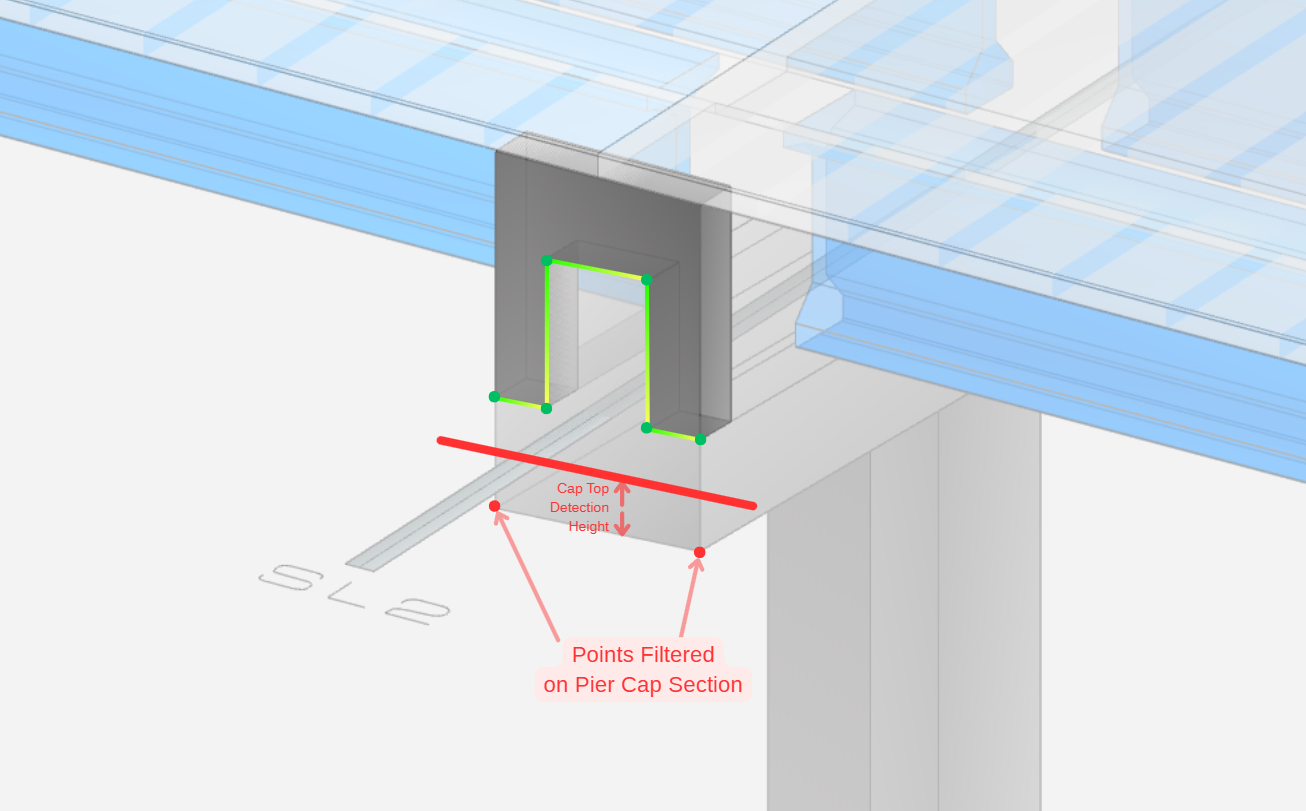
**Cap Top Detection Height:** Distance from the bottom of the pier cap used to filter section points.\
Only pier cap section points above this height are used to detect and match the Cheek Wall connection area.
## Quantities
**Total Surface Area:** The total surface area of the cheek wall, based on user-defined parameters, is calculated and presented under this column. This is a read-only parameter that updates automatically when geometry changes. Note that this is an expensive computation parameter.
**Volume:** Based on the modeled element definitions, the volume of the cheek wall is calculated and presented under this column. This is a read-only parameter that updates automatically when geometry changes. Note that this is an expensive computation parameter.
**Weight:** Based on the material density and element volume, the weight of the cheek wall is calculated and presented under this column. The weight is computed as: Weight = Volume × Material Density. This is a read-only parameter that updates automatically. Note that this is an expensive computation parameter.
**Material (readonly):** Displays the material assigned to the cheek wall. This is a read-only reference to the material specified in the General section.
{% hint style="info" %}
The quantity calculations (Total Surface Area, Volume, and Weight) are marked as "expensive computation" parameters. This means they are computed on-demand and may take longer to calculate for complex geometries. The system caches these values to improve performance.
{% endhint %}
---
# Agent Instructions
This documentation is published with GitBook. GitBook is the documentation platform designed so that both humans and AI agents can read, navigate, and reason over technical content effectively. Learn more at gitbook.com.
## Querying This Documentation
If you need additional information that is not directly available in this page, you can query the documentation dynamically by asking a question.
Perform an HTTP GET request on the current page URL with the `ask` query parameter, and the optional `goal` query parameter:
```
GET https://docs.openbrim.org/templates/steel-i-girder-bridge-workflow/substructure-sig/pier-sig/cheek-wall-sig.md?ask=&goal=
```
`ask` is the immediate question: it should be specific, self-contained, and written in natural language.
`goal` is optional and describes the broader end goal you are ultimately trying to accomplish on behalf of the user. GitBook uses it to tailor the answer towards what is most useful for that goal.
The response will contain a direct answer to the question and relevant excerpts and sources from the documentation.
Use this mechanism when the answer is not explicitly present in the current page, you need clarification or additional context, or you want to retrieve related documentation sections.